
Manage Agents for Team Functions
Overview
In the Process Builder, the agents of a task are determined from the Team Function or Team Header maintained in Teams and Responsibilities. Until now, agents could only be changed task by task through the agent pop-up. When the same function is used in many tasks and statuses, this means a lot of clicks.
The Manage Agents button gives the Change Responsible and/or Administrators one place to see and maintain all team-function agents of a Change Record. From there they can:
- See all agents determined from team functions, together with the team, the function and the responsibility they come from
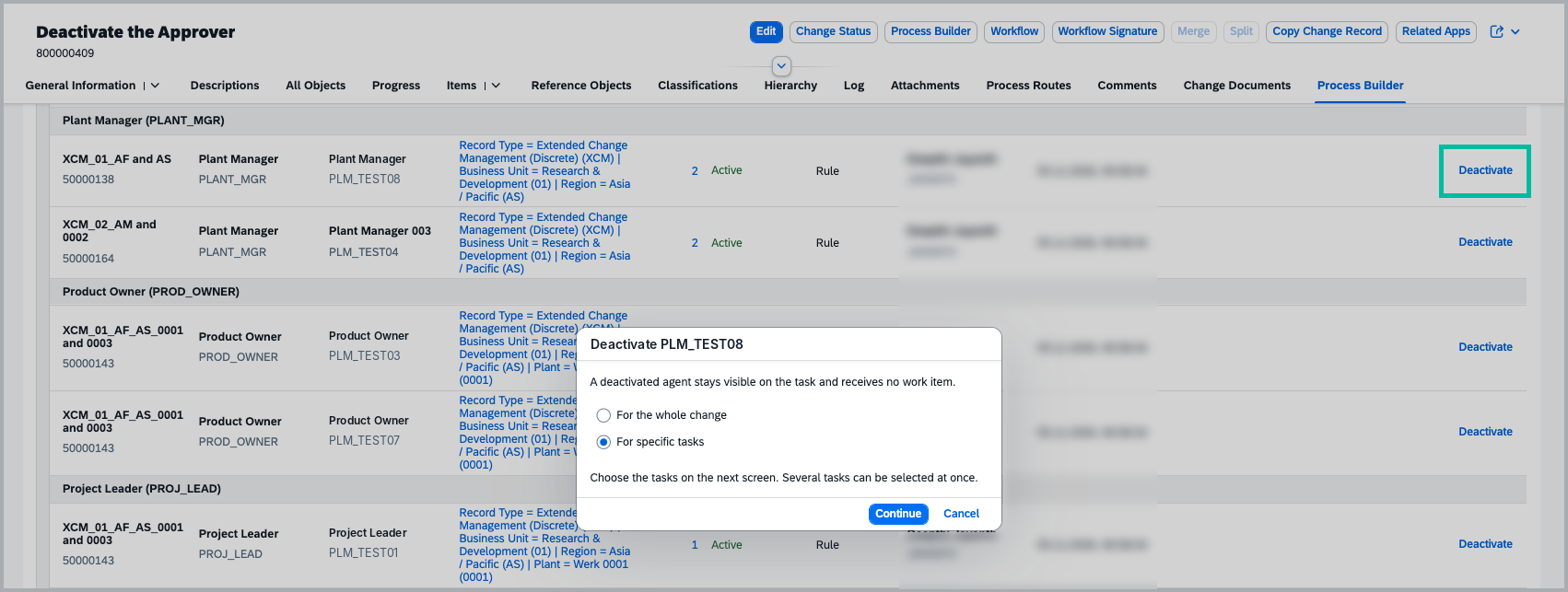
- Deactivate an agent for the whole Change Record or only for selected tasks
- Activate an agent again that was deactivated earlier
- Add an agent manually to a function, for the whole Change Record or only for selected tasks
Changes made here are kept when you click Sync Agent, so you do not need to repeat them after the teams are updated.
Steps to manage agents
1. Open the Change Record and navigate to the Process Builder tab. The Process Builder must already be generated.
2. Click on the Manage Agents button. A side pane opens on the right side of the screen.
- You can change the width of the side pane by dragging its edge, or switch it to full screen.
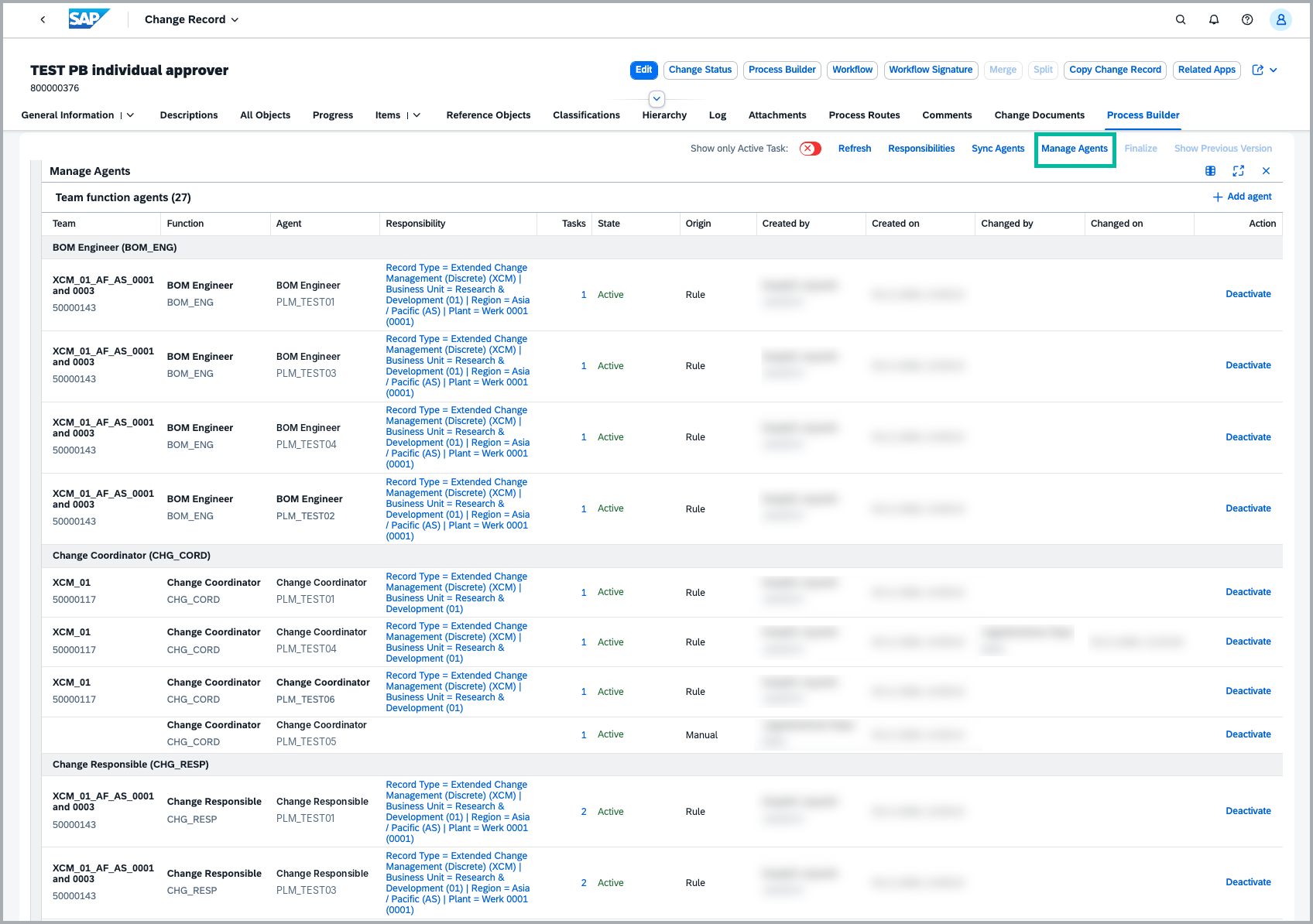
3. The side pane lists all agents that are determined from team functions in this Change Record. There is one row for each team, function and agent, with the following information:
- Team and Function from which the agent is determined.
- Responsibility – click on it to see the responsibilities of the team. Only the values that match the current Change Record are shown.
- Tasks – the number of tasks the agent is assigned to. Click on the number to filter the Process Builder tree to these tasks.
- State – Active, Deactivated, or Partly deactivated when the agent is deactivated only for some of the tasks.
- Origin – whether the agent comes from the team rule or was Added Manually.
- Who made the last change and when.
4. To deactivate an agent, select the agent in the list and choose whether the change applies to the whole Change Record or only to selected tasks.
- A deactivated agent will not receive a work item for these tasks.
- Every task needs at least one recipient. If deactivating the agent would leave a task without any recipient, the change is not saved and an error message shows which tasks are affected.
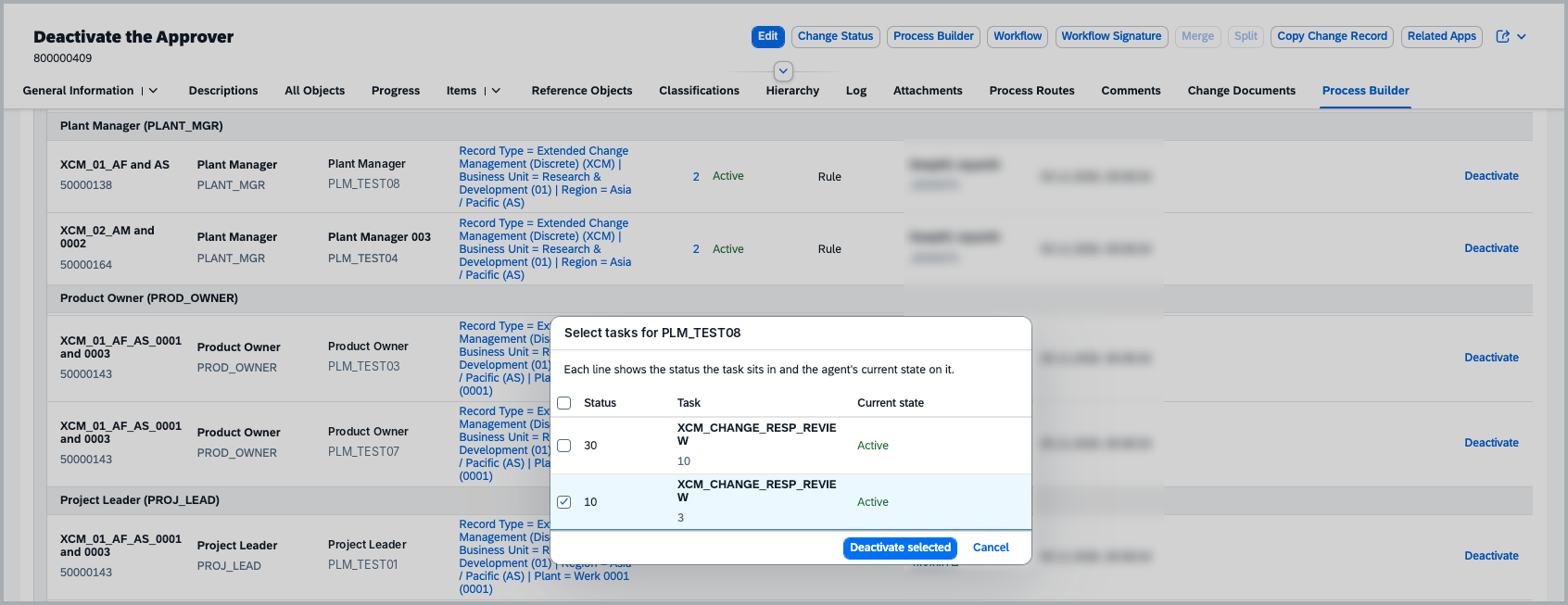
5. To activate an agent again, select the deactivated (or partly deactivated) agent and activate it for the whole Change Record or for selected tasks.

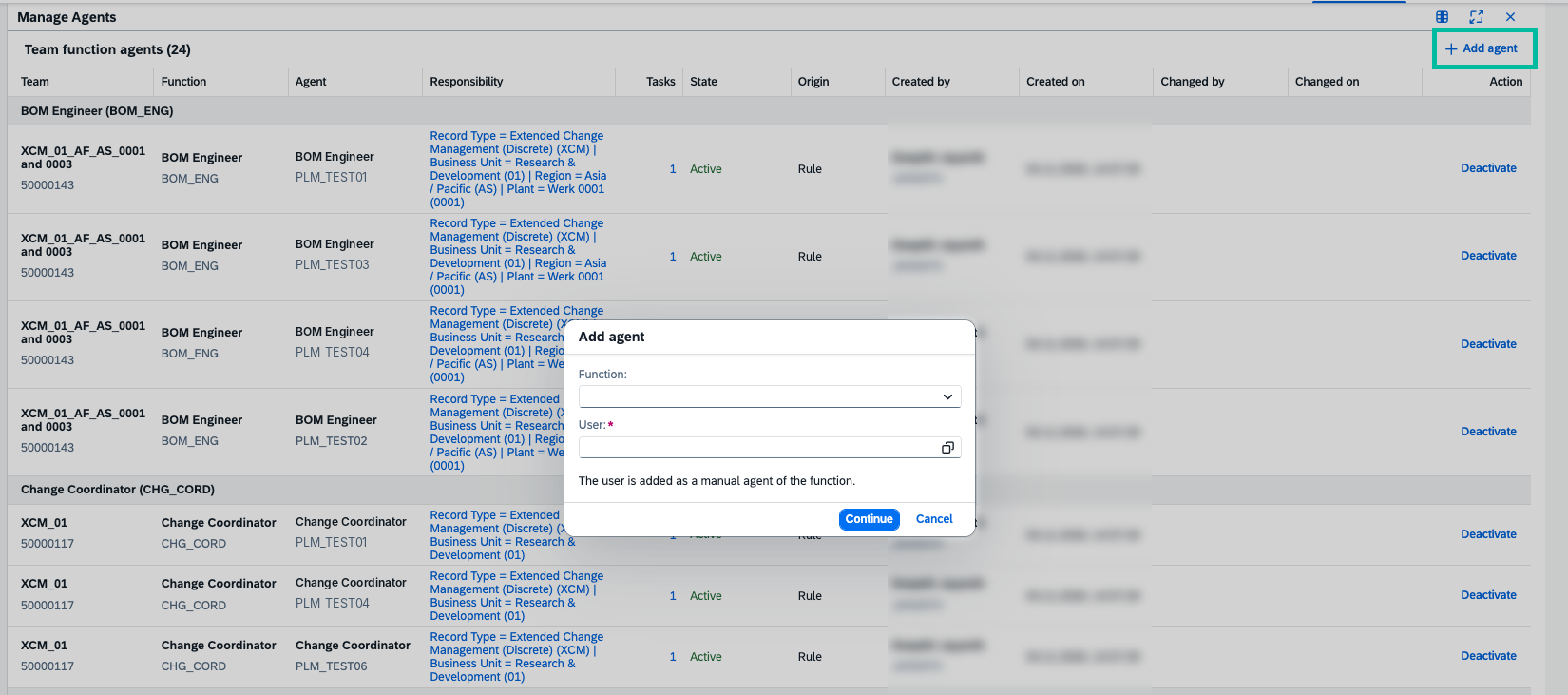
6. To add an agent, click on the “+” icon, select the function, and enter the user.
- Choose whether the agent is added for the whole Change Record or only for selected tasks.
- The new agent is shown with the origin Added Manually.
- Only users can be added. Business Partners are not supported here.
- An agent that was removed earlier can be added again.
7. Close the side pane. The changes are reflected immediately in the Process Builder tree and in the agent pop-up of each task.
8. Start the workflow and proceed with the approval process. The work items are sent only to the active agents.
Note:
- The agent pop-up of each task in the Process Builder is still available. If you change the same agent in the pop-up and in the side pane, the last change wins.
- Deactivated agents and manually added agents stay as they are when you click Sync Agent.
- The responsibilities are compared with the current values of the Change Record. If you change these values later, the list can show a different result.
- An agent that was added manually cannot be deleted. Deactivate it instead.
- Who may deactivate or add agents is controlled by the same authorizations as the Process Builder actions add agent and disable agent. These can also be controlled through the BAdI
/XCM/PR_EX_PROCESS_BUILDER. For details, see Process Builder.
See Also
Process Builder
Agent Determination Dynamically
Keywords
Manage Agents, Team Function, Team Header, Agent, Deactivate Agent, Add Agent, Process Builder, Teams and Responsibilities
Prerequisites
- Available from XCM release 2026.5.0.
- The Process Builder must be generated for the Change Record. For details, see Process Builder.
- The teams and functions must be maintained in Teams and Responsibilities. For details, see Agent Determination Dynamically .