
Enterprise Search for Change Record
Overview
The XCM Change Record Enterprise Search delivers an enhanced and flexible search experience, enabling users to efficiently locate change records across both header-level and item-level data.
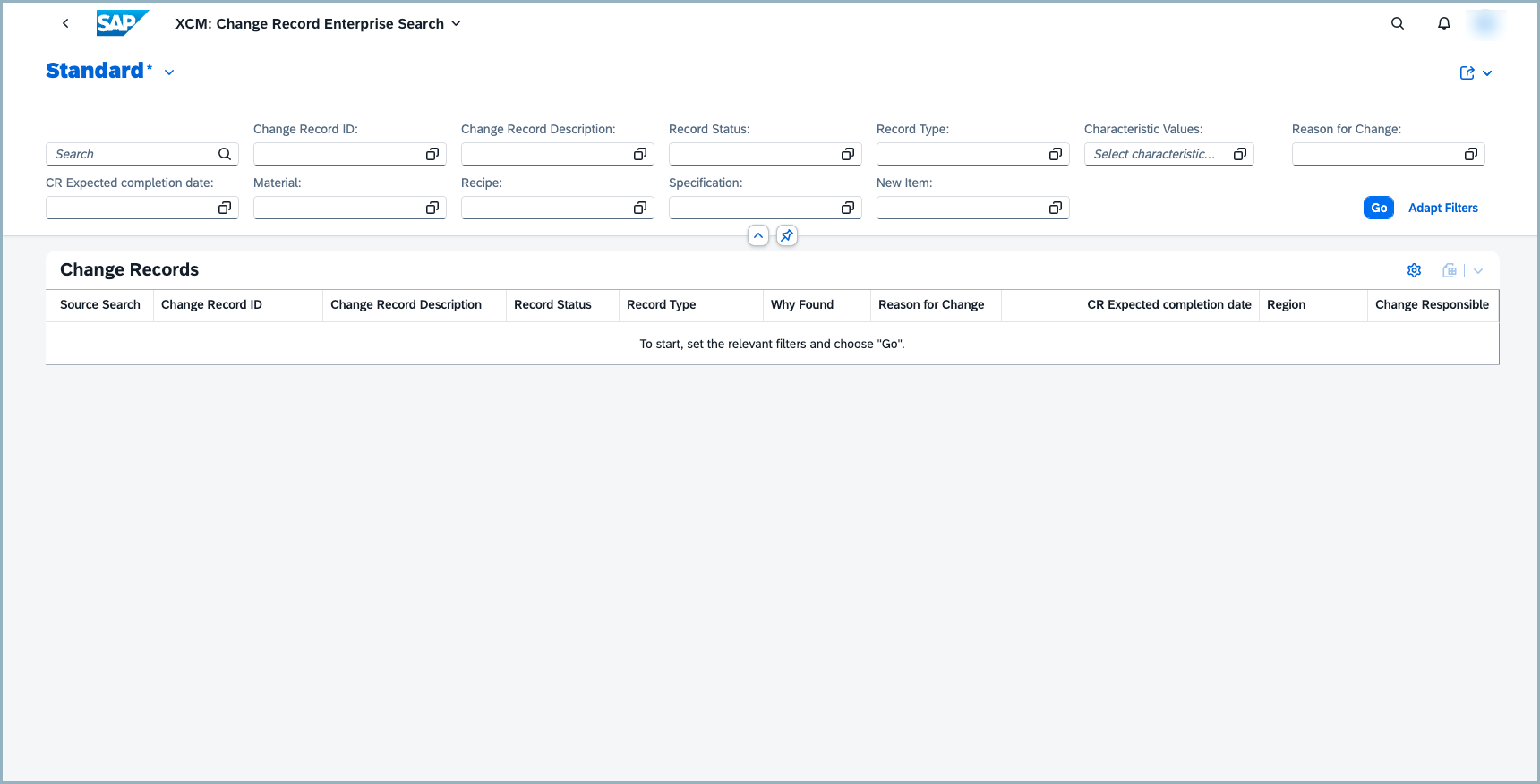
Unlike the SAP standard Manage Change Records application — where search is limited to header information — this solution extends search capability to include item-level attributes. Users can search by any item attribute, significantly improving the accuracy and relevance of results.
Key Capabilities
-
Extended Search Across Header and Item Data Users can search change records not only by header fields but also by any item-level attribute. This addresses a key limitation of the SAP standard application and helps users quickly find the most relevant change records.
-
Configurable Search and Output Fields via the Enterprise Search Cockpit The companion application — XCM Enterprise Search Cockpit — serves as the central configuration hub for this solution. Once the relevant attributes are configured and published, the Fiori list view dynamically reflects the updated fields. This ensures the search experience is tailored to specific business requirements and remains scalable for future enhancements. It allows administrators to define:
- Selection fields
- Result fields
- Search terms, including fuzzy search behavior
-
Classification-Based Search Users can search based on classification data, making it easier to identify the most appropriate change records for a given context.
-
Fuzzy Search with “Why Found” Transparency when “Free text search” is enabled for fields, the results include a “Why Found” column for header field matches. This column provides transparency into why a particular record was returned, helping users understand the search logic and refine their queries more effectively.
Steps to generate Artefacts
Generate Artefacts allows our customer to add custom fields to the search input and output, or enable free-text search with a click of a button. This is especially important when new fields are added at the Change Record header or item level, as they can be seamlessly included in the search filter criteria and search results to allow searching and displaying their values in the search list. Follow steps below to add custom fields to search:
- Open the tile “XCM Enterprise search cockpit”
- Enable or disable the field based on your business requirement.
- Click on the “Generate Artefacts” button.
- A message saying “Artefacts Generation Started” will be displayed.
- A background job will start, which activates all the steps mentioned in the Optional Steps section below.
- If certain processes (such as connector activation) do not complete, follow the optional steps manually.
5. Click on the “Refresh” button.
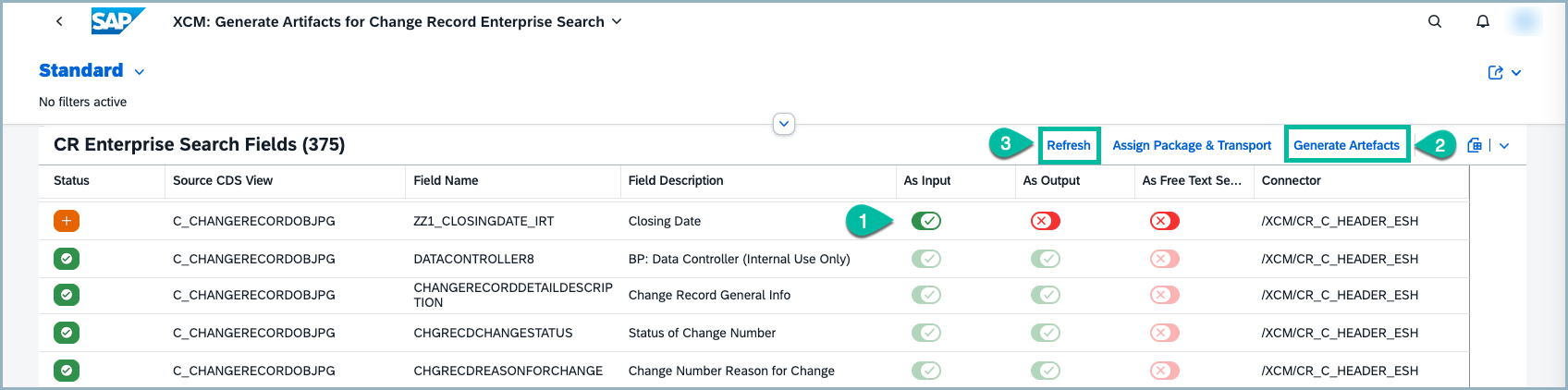 6. The field you enabled will remain in the enabled state after refreshing.
7. Navigate to “XCM Change Record Enterprise Search”.
8. The field enabled in Step 2 will now be available in the filter values.
Optional steps
If in case, the field you enabled (for Input/Output by following steps mentioned above) is not reflected in “XCM Change Record Enterprise Search” after generating artefacts, follow these steps:
1. Open SAP logon,
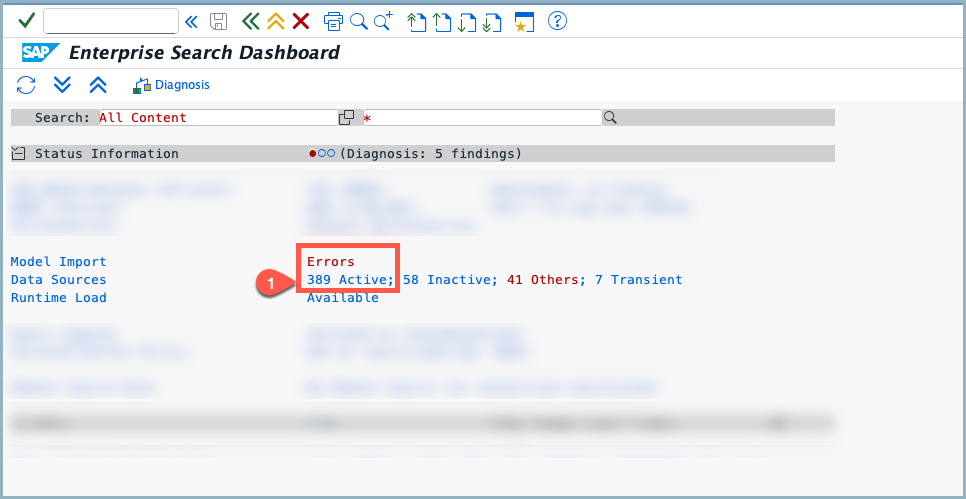
2. Enter the T-code ESH_DASHBOARD and Press enter.
3. Click on “Active Entries” (as highlighted)
 4. Then click on the “Activate” button.
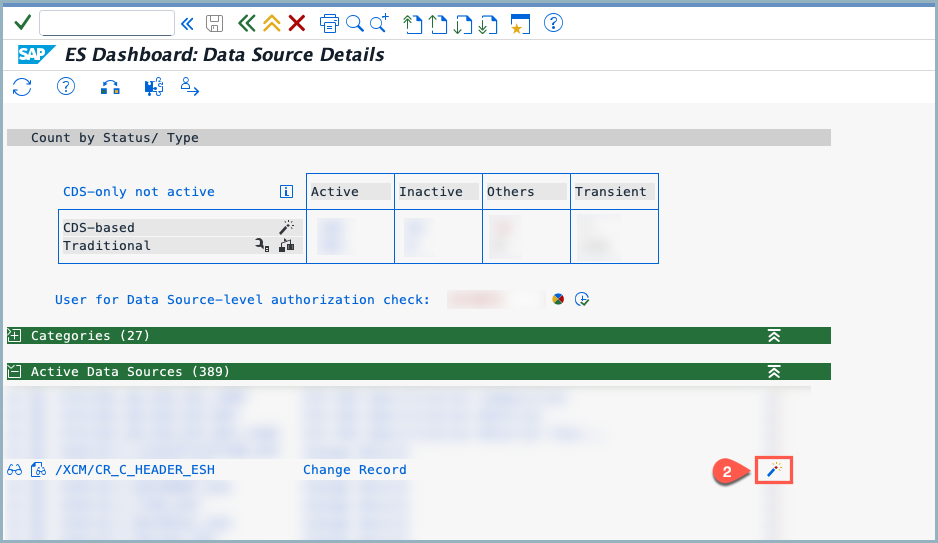
5. A success message will be displayed after activation.
6. Navigate to “XCM Change Record Enterprise Search” and search for the field you enabled.
7. The field enabled in Step 2 should now be visible in the filter values.
Prerequisites
- Please Activate the connector if XCM Change Record Enterprise search is not working. (activation of the connector steps is mentioned above in optional steps) this is the one time activity