Post Update Activities: 2025.8
Situation
You’re upgrading from an earlier version of PPM Process Package to a newer release. Manual steps for migration are necessary.
Solution
The following steps are necessary if you implemented your own BRF+ customizing app.
Update Customer App
Execute the report /STX/SOL_PPP_CUSTOMER_BRF_APP for your customer BRF+ without Simulation Mode.
Changed Tables
Following BRF+ Decision Tables have been updated and need to be manually updated in case they are already in use in the customer app:
-
Change Document Section -
CHANGE_DOC_SECTIONS- Replace Column
Object TypewithEntity Type
- Replace Column
-
Authorization Section -
AUTHORIZATION_SECTIONS- Replace Column
Object TypewithEntity Type
- Replace Column
-
Column Control Authorization -
COLUMN_CONTROL_AUTHORIZATION- Replace Column
Object TypewithEntity Type
- Replace Column
To do that, follow the steps below to add above described column:
-
Open
Table Settingsand click onInsert Column from Data Object -
Select the column
ENTITY_TYPE, it can be found in following structures:/STX/SOL_PPP_S_CDOC_SECTIONS_Ifor tableChange Document Section/STX/SOL_PPP_S_AUTH_SECTIONS_Ifor tableAuthorization Section/STX/SOL_PPP_S_COL_CTLR_AUTH_Ifor tableColumn Control Authorization
-
Remove the obselete column
OBJECT_TYPE -
Click on
OK -
Lastly, save and activate the decision table
Migrate old Switches to new Switches
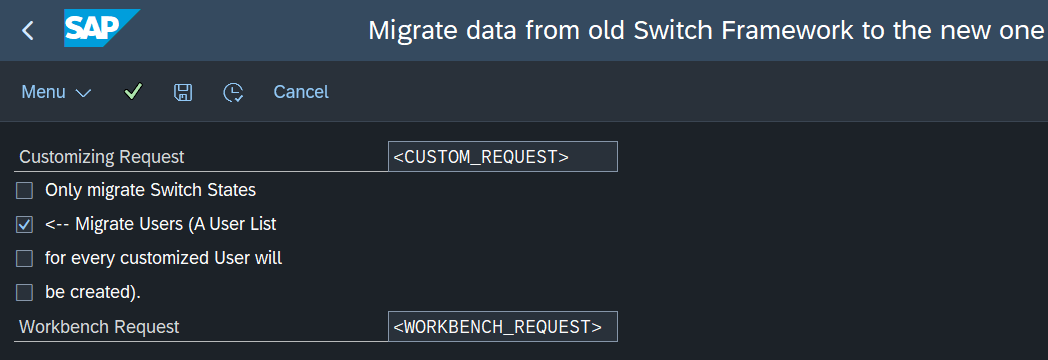
Execute /STXSFW/MIGRATE with the settings shown on below screenshot:
⚠️ Be very careful when executing the report and exactly take over the shown settings. There is only one possible attempt for migration.
⚠️ In case migration fails, please ask your sophisTex support team for assistance.