
PLM CR Integration with SAP MDG-M
Overview
MDG-M:
- SAP MDG-M (Master Data Governance for Material) centralizes the creation, management, and distribution of material master data to ensure accuracy, consistency, and compliance across systems.
- With validation rules, duplicate checks, and approval workflows, it enhances data quality and efficiency.
- Its seamless integration with SAP and non-SAP systems standardizes material information, reduces redundancy, and supports analytics, supply chain operations, and digital transformation.
Integration:
- SAP MDG-M and SAP PLM Change Record work together to synchronize engineering-driven changes (from PLM) with business and operational master data (in MDG).
- When an engineering change in SAP PLM requires new or updated material data, a S/4HANA change record can trigger or link to an MDG material change request (MDG-M CR).
- This ensures that material master updates, like new material creation, description updates, or Material Classification update, follow a governed, auditable process and are distributed consistently across ERP and other systems.
Key Advantages:
- Eliminates manual re-entry of material information, reducing errors and mismatched data between ERP and MDG-M
- Combines PLM’s engineering change control with MDG’s data governance, ensuring all changes go through standard workflows, approvals, and validations
- Provides complete visibility of material master changes, linking every ERP update to its originating engineering change record for full auditability.
Integration setup Between PLM Change Record and MDG-M
- MDG-M Change Requests (CRs) are automatically created by XCM for all materials or placeholders with create relevance added to the Change Record.
- This creation depends on the assigned relevance, for example, if the relevance is “Reference”, no MDG-M CR will be created.
To enable automatic MDG-M CR creation, the following customizations must be performed:
1. Configure the MDG-M Task in BRF+
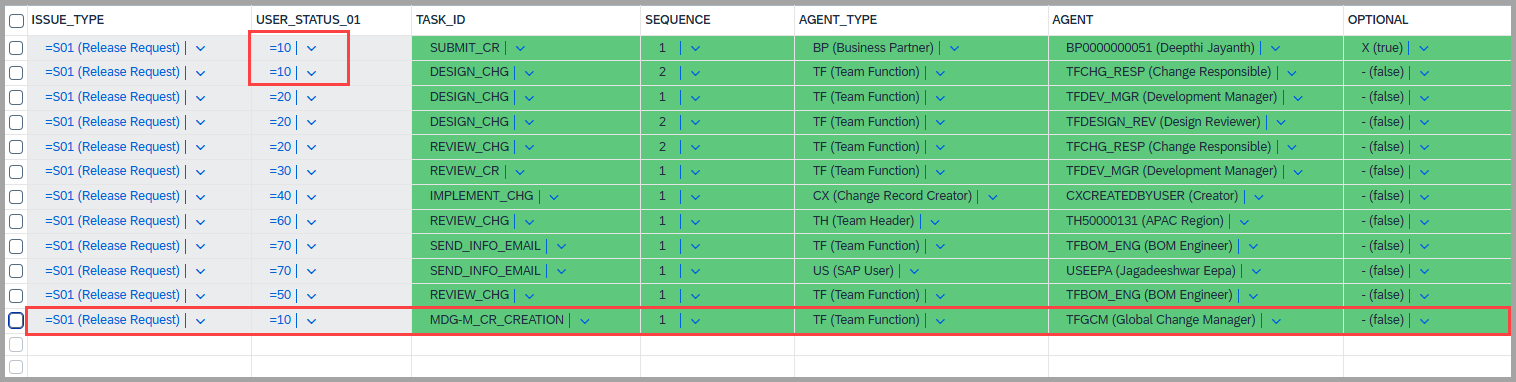
- XCM delivers a predefined background task named
MDG-M_CR_CREATE. - Maintain this task in the BRF+ Decision Table – GET_TASKS for the appropriate Change Record status, as shown in the screenshot below.
-
Please refer to the link - IMG Customization to create task id.
-
This entry determines when and how the MDG-M task is created within the workflow.
-
The MDG-M task must be configured for one specific status only.
- For example, if the task is to be triggered at Status 45, it should not be configured for any other status.
-
This setup ensures proper control and prevents duplicate task creation during the Change Record approval process.
-
You may also configure additional tasks relevant to this status as per your business process needs.
2. MDG-M Admin Task
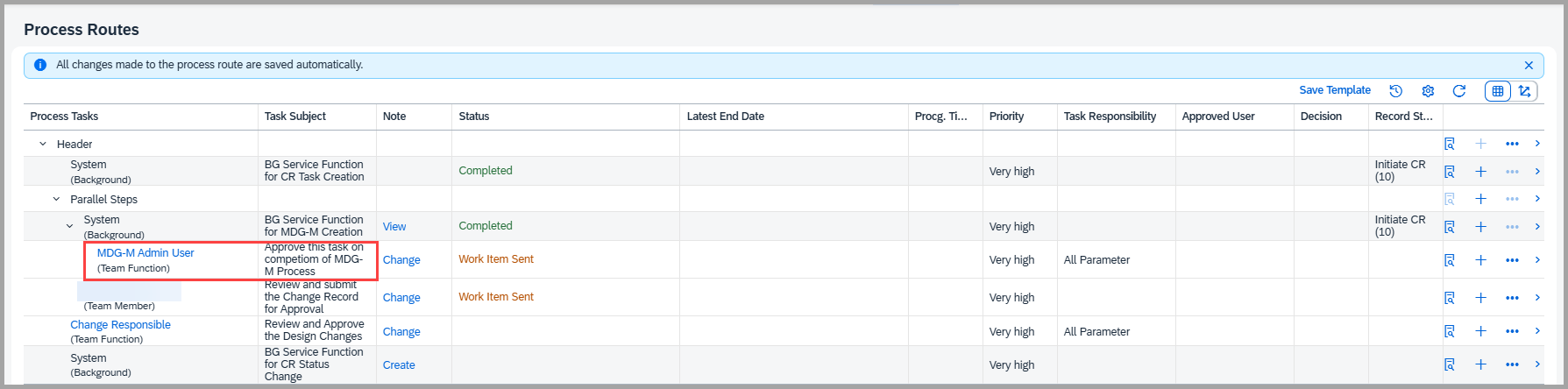
- During workflow execution, when the background task
MDG-M_CR_CREATEruns, it checks for any existing MDG-M CRs. - If MDG-M CRs are found, the corresponding MDG-M Admin User Dialog Task is automatically created under this background task.
- Ensure that the Admin User is maintained in Teams & Hierarchy under the respective parent team with the Function set to
MDG-M_ADM. - This is required for assigning the MDG-M Admin User Dialog Task during workflow processing.
- And this dialog task is handled programmatically and does not need to be maintained in the BRF+ configuration.
3. Exception Task
- The below screenshot shows the Exception Task for MDG-M.
- This task is triggered when a request is sent to the MDG team to generate an MDG Request ID, but the system fails to generate it after three consecutive attempts.
- Once the third attempt fails, the system automatically creates an Exception Task to notify the administrator, as defined in the GET_ADMIN decision table, for further investigation and corrective action.
- You are free to maintain in the BRF+ to whom this task can be delivered

4. MDG-M CR update in CR:
- After the successful creation of the MDG-M Change Request in the MDG-M system, XCM automatically updates the Change Record at the Material Change Item level with the corresponding MDG Request Number.

5. Handling Admin Task:
-
After successful completion of the MDG-M Change Request (CR) process, the MDG system triggers the API delivered by XCM to update the status of the MDG request in the Change Record.
-
If multiple MDG-M CRs exist under the same PLM Change Record, there are two possible process options:
-
Early Completion Option – Customer may choose to end the Admin Task and continue the workflow once any one MDG-M CR is approved.
- In this case, API should carry the status “C” (Completed) via the API
-
Full Completion Option – Alternatively, the customer can configure the process to wait for all MDG-M CRs in the MDG-M system to be completed before ending the Admin Task and proceeding to the next steps in the Change Record workflow.
-
6. Update the Material:
- In cases the placeholder is added in the Change Record for a new material creation, the placeholder must be replaced with the actual Material Number once the material is created in the MDG system.
- To achieve this, the generated Material Number should be passed back through the API, which then automatically updates the Change Record, replacing the placeholder value at the item level.
Note
- Each Material maintained at the Change Record (CR) item level will have a unique MDG Request ID.
- This establishes a 1:1 relationship between the Material and its corresponding MDG Request ID.
See Also
Keywords
MDG-M, MDG, Material, Admin user task
Pre-requisites
- Task Id needs to be created at the customization level
- Material needs to added with the relevance type Create or change
- BRF+ entry needs to added for MDG-M task